
这是本系列的第1部分。在进行开发的过程之前,我将解释Windows Phone的基础知识。第1部分涵盖了以下三个开发的基本主题:
首先从该链接下载并安装用于Windows Phone 7系列的全部开发工具。在安装完先前的SDK 7.1之后,访问该链接对版本进行升级。
Windows Phone SDK包含以下内容:
首先从File菜单选择New project,然后选择Window Phone Application并输入应用程序名称,选择存储位置。
来看Windows Phone默认的UI面板元素Grid和Stack Panel。
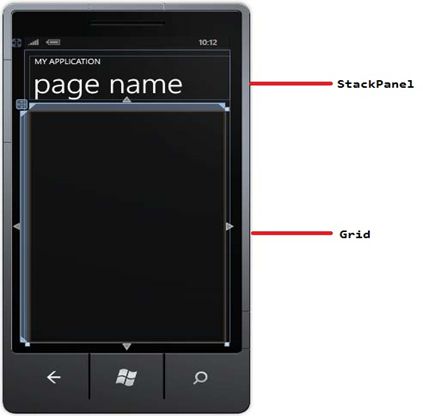
|
1
2
3
|
<stackpanel x:name="TitlePanel" grid.row="0" <textblock="" text="MY APPLICATION" style="{StaticResource? PhoneTextNormalStyle}">?
???<textblock x:name="PageTitle" text="page name Style=" {staticresource="" phonetexttitle1style}"="">?
</textblock></stackpanel> |
|
1
2
3
4
5
|
<grid x:name="ContentPanel" grid.row="1" margin="12,0,12,0">?
???<button x:name="Button" content="Button" height="95"></button>?
???<textblock x:name="TextBlock" text="This is TextBlock" height="95"></textblock>?
???<img x:name="Image" height="100" margin="6,378,-6,129" source="/PhoneApp1;component/Images/Chrysanthemum.jpg">?
</grid> |
Windows Phone 7提供了包含Button、TextBox、TextBlock、Image和HyperLink在内的各种控件。
|
1
|
<button x:name="Button" content="Button" height="95"></button>
|
|
1
|
<textblock x:name="TextBlock" text="This is TextBlock" height="95"></textblock>
|
|
1
|
<textbox x:name="MyTextBox" text="Hai" height="95" margin="0,98,0,0" verticalalignment="Top"></textbox>
|
|
1
|
<img x:name="Image" height="100" margin="12,320,-12,187" source="/PhoneApp1;component/Images/Chrysanthemum.jpg">
|
|
1
|
<hyperlinkbutton content="HyperlinkButton" height="44" horizontalalignment="Left" margin="12,450,0,0" name="hyperlinkButton1" verticalalignment="Top" width="258"></hyperlinkbutton>
|
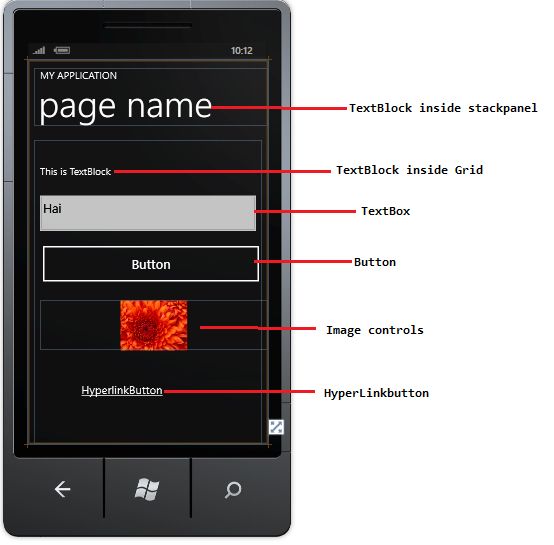
?to be continue...
本文翻译自c-sharpcorner.com,原文地址
原文:http://shoothao.iteye.com/blog/2231313