
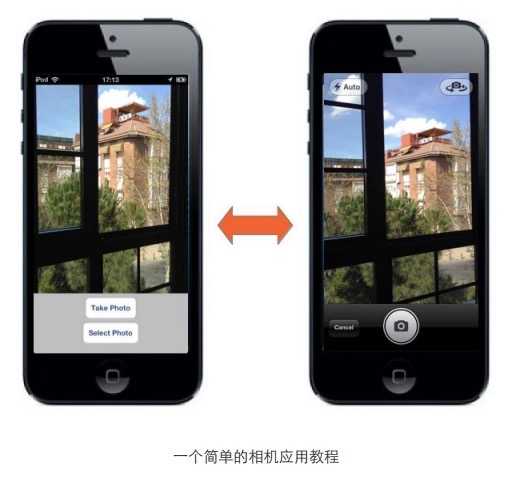
前言:本篇博文是本人阅读国外的IOS Programming Tutorial的一篇入门文章的学习过程总结,难度不大,因为是入门。主要是入门UIImagePickerController这个控制器,那么这个控制器是干嘛的呢?就是调用设备摄像机功能用的。到后面可能需要您在真机上测试,因为iPhone模拟器无法支持摄像机功能,运行测试会崩溃的哦。
网址:http://www.appcoda.com/ios-programming-camera-iphone-app
其实我就按照这篇博文的讲解过程,自己做了一遍,也敲了一遍代码,很快就熟悉了这个UIImagePickerController是啥玩意了。
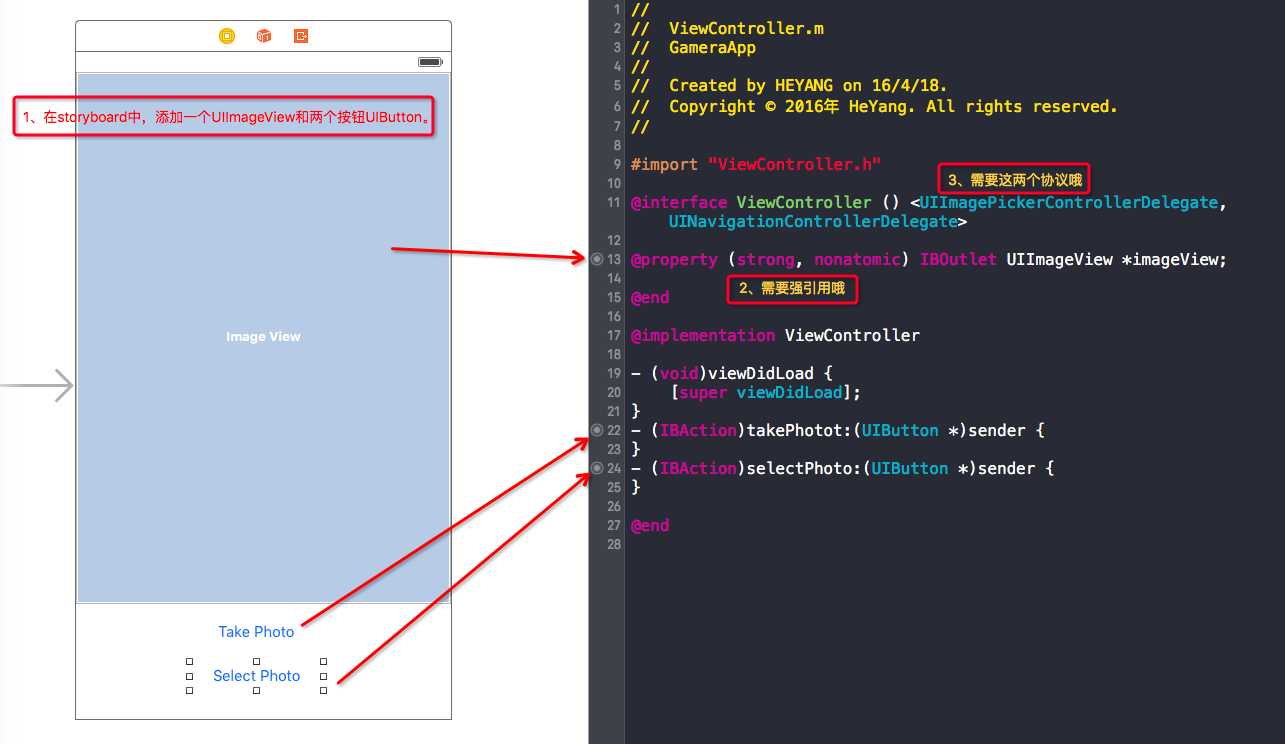
1、首先简单的创建一个工程,然后在storyboard和对应的.m文件中添加相关的代码,这个简明教程没有使用自动布局,不多说,看图识字:
2、下面是这个ViewController.m的完整实现:
 1 #import "ViewController.h"
 2
 3 @interface ViewController () <UIImagePickerControllerDelegate,UINavigationControllerDelegate>
 4
 5 @property (strong, nonatomic) IBOutlet UIImageView *imageView;
 6
 7 @end
 8
 9 @implementation ViewController
10
11 - (void)viewDidLoad {
12     [super viewDidLoad];
13
14     // 这段代码会自动判断当前设备是否有摄像机功能,如果没有,会弹窗提示
15     if (![UIImagePickerController isSourceTypeAvailable:UIImagePickerControllerSourceTypeCamera]) {
16
17         UIAlertView *myAlertView = [[UIAlertView alloc] initWithTitle:@"Error"
18                                                               message:@"Device has no camera"
19                                                              delegate:nil
20                                                     cancelButtonTitle:@"OK"
21                                                     otherButtonTitles: nil];
22
23         [myAlertView show];
24
25     }
26 }
27 - (IBAction)takePhotot:(UIButton *)sender {
28     // 创建UIImagePickerController控制器对象
29     UIImagePickerController *picker = [[UIImagePickerController alloc] init];
30     picker.delegate = self;
31     picker.allowsEditing = YES;
32     picker.sourceType = UIImagePickerControllerSourceTypeCamera;
33
34     [self presentViewController:picker animated:YES completion:nil];
35 }
36 - (IBAction)selectPhoto:(UIButton *)sender {
37     // 创建UIImagePickerController控制器对象
38     UIImagePickerController *picker = [[UIImagePickerController alloc] init];
39     picker.delegate = self;
40     picker.allowsEditing = YES;
41     picker.sourceType = UIImagePickerControllerSourceTypePhotoLibrary;
42
43     [self presentViewController:picker animated:YES completion:nil];
44 }
45 #pragma mark - 代理方法
46 -(void)imagePickerController:(UIImagePickerController *)picker didFinishPickingMediaWithInfo:(NSDictionary<NSString *,id> *)info{
47     UIImage* chosenImage = info[UIImagePickerControllerEditedImage];
48     self.imageView.image = chosenImage;
49
50     [picker dismissViewControllerAnimated:YES completion:nil];
51 }
52 -(void)imagePickerControllerDidCancel:(UIImagePickerController *)picker{
53     [picker dismissViewControllerAnimated:YES completion:nil];
54 }
55
56 @end
就这部分代码,别的没有了哦。
最后用你的真机测试使用一下哦。
IOS开发之小实例--UIImagePickerController
原文:http://www.cnblogs.com/goodboy-heyang/p/5403947.html