
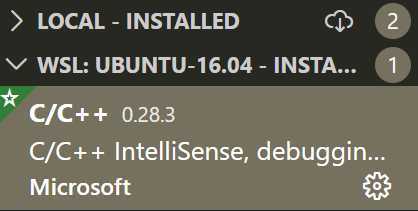
在vscode下给wsl安装C/C++插件,注意不是LOCAL
打开wsl remote terminal并安装gdb
速度过慢参考wsl安装Ubuntu16.04+Python2.7换源
$ sudo apt install gdb
在cpp文件目录下创建.vscode/launch.json并写入以下内容:
{
    // Use IntelliSense to learn about possible attributes.
    // Hover to view descriptions of existing attributes.
    // For more information, visit: https://go.microsoft.com/fwlink/?linkid=830387
    "version": "0.2.0",
    "configurations": [
        {
            "name": "g++ - Build and debug active file",
            "type": "cppdbg",
            "request": "launch",
            "program": "${fileDirname}/${fileBasenameNoExtension}",
            "args": [],
            "stopAtEntry": false,
            "cwd": "${workspaceFolder}",
            "environment": [],
            "externalConsole": false,
            "MIMode": "gdb",
            "setupCommands": [
                {
                    "description": "Enable pretty-printing for gdb",
                    "text": "-enable-pretty-printing",
                    "ignoreFailures": true
                }
            ],
            "preLaunchTask": "C/C++: g++ build active file",
            "miDebuggerPath": "/usr/bin/gdb"
        }
    ]
}
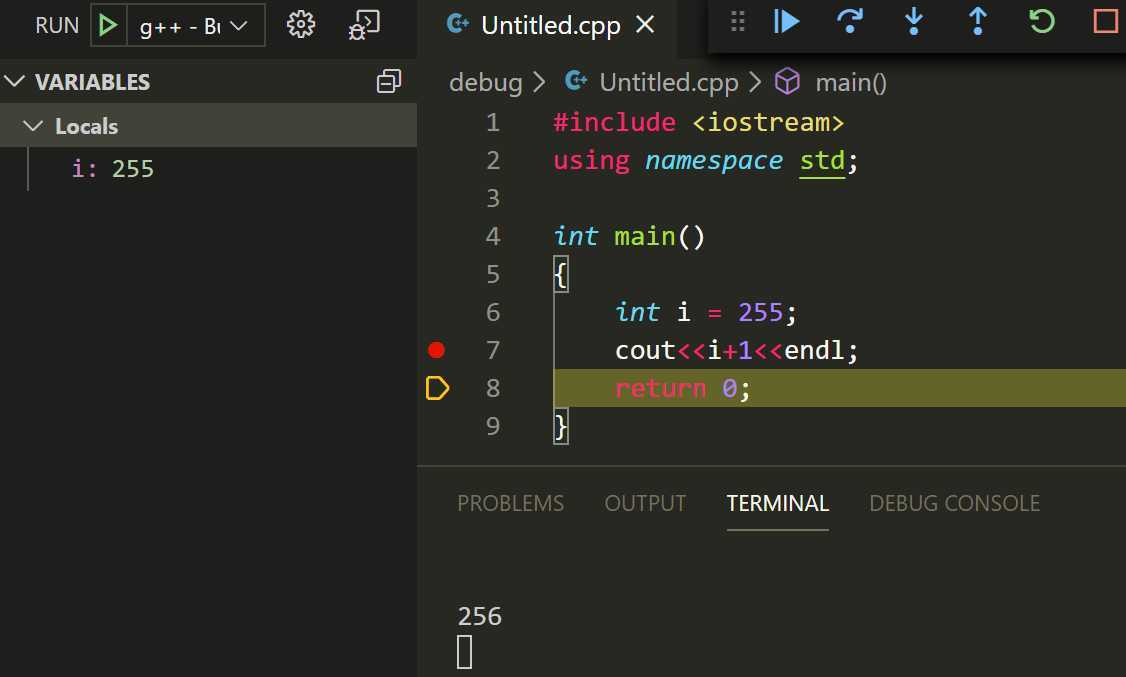
可以正常debug并进入断点调试
原文:https://www.cnblogs.com/azureology/p/13095148.html