
具体描述了运用Edraw Office Viewer Component为WPF应用长须嵌入MS Word,Excel以及Power Point的方法。
打开Visual Studio,并创建一个新的WPF应用程序。
右键单击WpfApplication1 Solution。 然后单击Add添加菜单,并点击User Control…
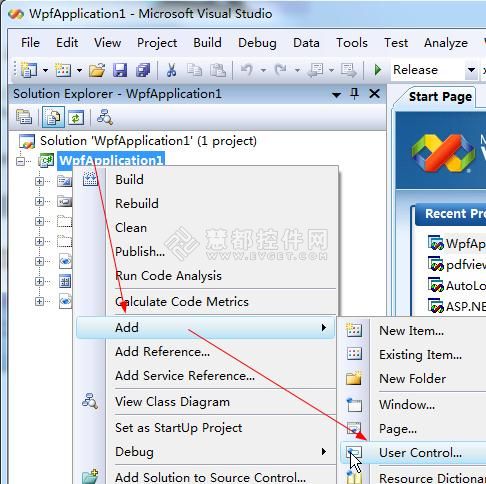
wpf的项目中将会出现一个新窗口。在Solution面板双击UserControl1.CS。
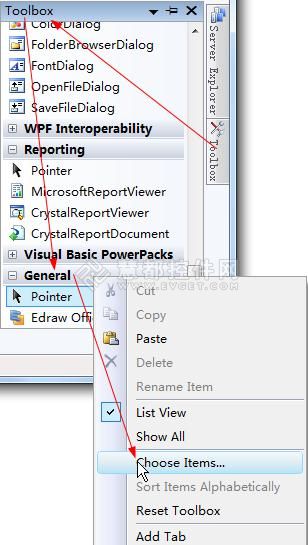
打开Toolbox面板,然后单击Choose Items…。
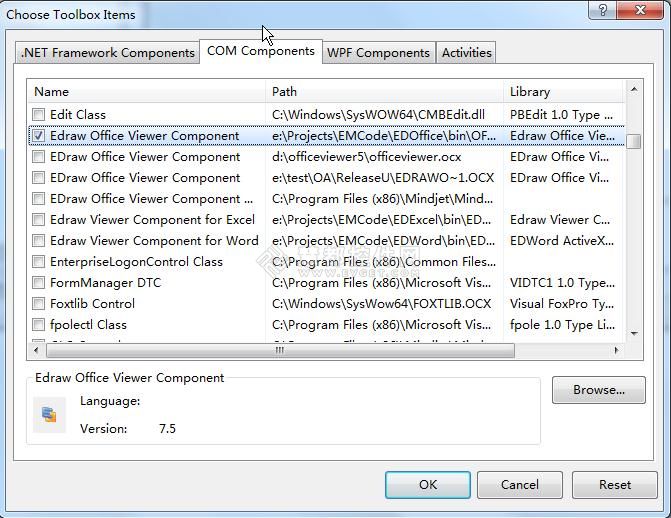
在弹出的Choose Toolbox Items选择工具箱项目对话框中,选择Edraw Office Viewer Component组件然后单击Ok。
Edraw Office Viewer Component组件就已经被添加到Toolbox工具箱中添加工具箱的General选项卡中。之后将它拖放到UserControl窗口。
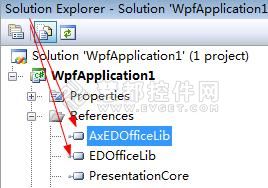
这个AxEDofficeLib和EDOfficeLib将通过Visual Studio向导被添加到解决方案中。
键入以下的c#代码,打开一个word文档,并保护该Word文档不被修改:
1 2 3 4 5 6 7 8 9 10 11 12 13 14 15 16 17 18 19 20 21 22 23 24 25 26 27 28 29 30 31 32 33 34 35 36 37
|
using System;using System.Collections.Generic;using System.ComponentModel;using System.Drawing;using System.Data;using System.Linq;using System.Text;using System.Windows.Forms;namespace WpfApplication1{public partial class UserControl1 : UserControl{public UserControl1(){InitializeComponent();}public void Open(){axEDOffice1.OpenFileDialog();}public void Protect(){if (axEDOffice1.GetCurrentProgID() == "Word.Application"){axEDOffice1.ProtectDoc(2);}}public void Print(){axEDOffice1.PrintPreview();}public void Close(){axEDOffice1.ExitOfficeApp();}}} |
最后,您需要为UserControl编写一个主机窗口。切换到Windows1.xaml文件然后加入开放、保护、打印和关闭按钮,如下图所示:
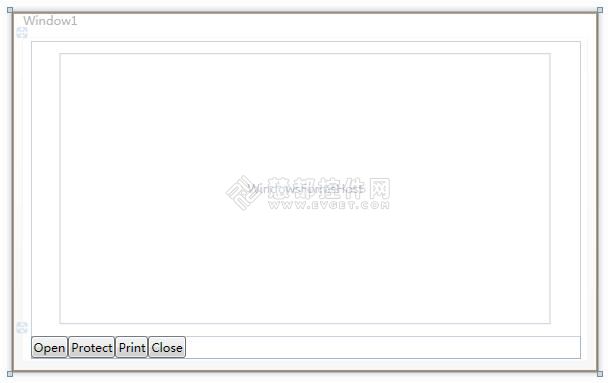
添加如下代码:
1 2 3 4 5 6 7 8 9 10 11 12 13 14 15 16 17 18 19 20 21 22 23 24 25 26 27 28 29 30 31 32 33 34 35 36 37 38 39
|
using System;using System.Collections.Generic;using System.Linq;using System.Text;using System.Windows;using System.Windows.Controls;using System.Windows.Data;using System.Windows.Documents;using System.Windows.Input;using System.Windows.Media;using System.Windows.Media.Imaging;using System.Windows.Navigation;using System.Windows.Shapes;namespace WpfApplication1{public partial class Window1 : Window{public Window1(){InitializeComponent();}private void Open_Click(object sender, RoutedEventArgs e){_host.Open();}private void Protect_Click(object sender, RoutedEventArgs e){_host.Protect();}private void Print_Click(object sender, RoutedEventArgs e){_host.Print();}private void Close_Click(object sender, RoutedEventArgs e){_host.Close();}}} |
打开Configuration Manager配置管理器。改变 Active解决方案平台为x86选项。然后构建并运行。
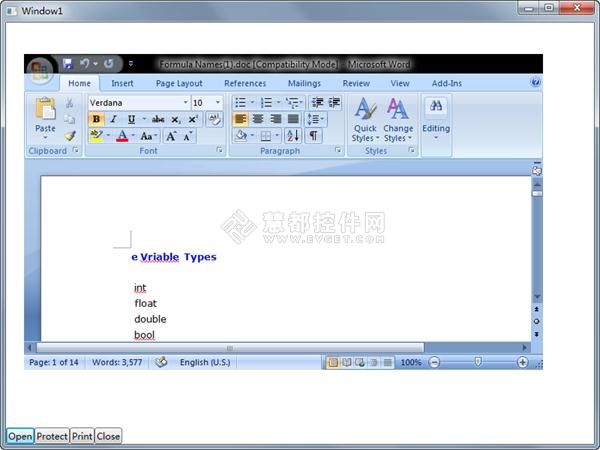
Office Viewer Component组件支持所有版本MS Word。嵌入MS Excel或PowerPoint,Visio、项目到一个WPF应用程序中,您不必改变任何东西,只能调用Open方法,如下所示:
1 2 3 4 5 6 7 8 9
|
public void Open(){//axEDOffice1.OpenFileDialog();axEDOffice1.Open(sPath, "Word.Application");axEDOffice1.Open(sPath, "Excel.Application");axEDOffice1.Open(sPath, "PowerPoint.Application");axEDOffice1.Open(sPath, "Visio.Application");axEDOffice1.Open(sPath, "MSProject.Application");} |
运用Edraw为WPF应用程序嵌入Office文档的方法总结,布布扣,bubuko.com
运用Edraw为WPF应用程序嵌入Office文档的方法总结
原文:http://www.cnblogs.com/misskiss/p/3568554.html