
By Daniel Du
If you have not heard of View and Data API, here is the idea, the View & Data API enables web developers to very easily display 3D (and 2D) models on a WebGL-enabled browser. please read this one first and get a key from http://developer.autodesk.com and start playing with the API. In this blog post, I will paste some code snippet of making the viewer into full screen mode. Hope it is helpful :
Following code snippet make the viewer full browser.
$(‘#btnFullBrowser‘).click(function () {

    var vsmd = new Autodesk.Viewing.ViewerScreenModeDelegate(viewer);
    var oldMode = vsmd.getMode();
    console.log(oldMode);//kFullScreen, kFullBrowser, kNormal

    if (vsmd.isModeSupported(Autodesk.Viewing.Viewer
                .ScreenMode.kFullBrowser)) {
        var newMode = Autodesk.Viewing.Viewer.ScreenMode.kFullBrowser;
        vsmd.doScreenModeChange(oldMode, newMode)
        //vsmd.setMode(newMode);

    }
    else {
        console.log(‘ScreenMode.kFullBrowser not supported‘);
    }


});
What exactly “full browser” means? it hides any other html elements and enlarges the viewer to make it fulfill the whole browser in current tab. For example, I have a test application like below, please note that I have a title in my application, and some buttons, also note that this application is just one of many browser tabs.

If you I click the ‘full browser ’ button to run following code snippet, here is what I get, the viewer is full of the current browser tab, actually my browser is just part of my desktop, I can see other windows like terminal window, my text editor window, etc. If I press “Escape” key, it returns to normal mode:
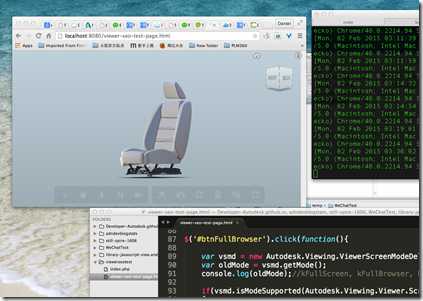
Following code demos making viewer full screen. With full screen mode, you will get an immersive experience, all other browser tabs and other windows are hidden, the viewer takes the whole screen, if you are doing a game or virtual reality application, like this one, you may want to use full screen mode.
$(‘#btnFullScreen‘).click(function () {

    var vsmd = new Autodesk.Viewing.ViewerScreenModeDelegate(viewer);
    var oldMode = vsmd.getMode();
    console.log(oldMode);//kFullScreen, kFullBrowser, kNormal


    if (vsmd.isModeSupported(Autodesk.Viewing.Viewer
                   .ScreenMode.kFullScreen)) {
        var newMode = Autodesk.Viewing.Viewer.ScreenMode.kFullScreen;
        vsmd.doScreenModeChange(oldMode, newMode)
        //asmd.setMode(newMode);

    }
    else {
        console.log(‘ScreenMode.kFullScreen not supported‘);
    }


});
For more code samples, please go to our sample home page: https://developer-autodesk.github.io/
View and Data API Tips: how to make viewer full screen
原文:http://www.cnblogs.com/junqilian/p/4272035.html
