
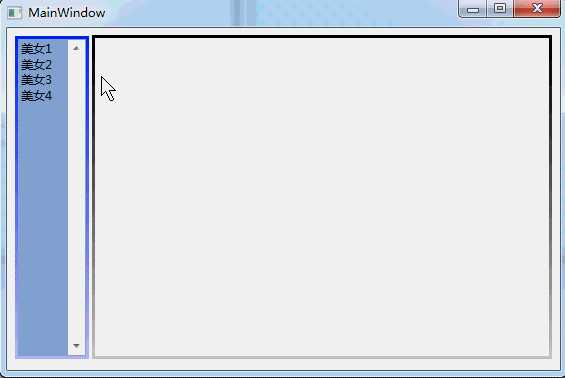
用ListBox和Border控件实现WPF简单的图片浏览。
1.MainWindow.xaml代码如下:
<Window
	xmlns="http://schemas.microsoft.com/winfx/2006/xaml/presentation"
	xmlns:x="http://schemas.microsoft.com/winfx/2006/xaml"
	xmlns:d="http://schemas.microsoft.com/expression/blend/2008"
    xmlns:mc="http://schemas.openxmlformats.org/markup-compatibility/2006"
	x:Class="Example3_19.MainWindow"
	x:Name="Window"
	Title="MainWindow"
	Width="682.833" Height="538.197" WindowStartupLocation="CenterScreen" mc:Ignorable="d" Background="#FFF9F9F9">
    <Grid x:Name="LayoutRoot">
        <Grid x:Name="grid1" Margin="8,8,8,248" d:LayoutOverrides="VerticalAlignment">
            <Grid.RowDefinitions>
                <RowDefinition/>
                <RowDefinition Height="0*"/>
            </Grid.RowDefinitions>
            <Grid.ColumnDefinitions>
                <ColumnDefinition Width="0*"/>
                <ColumnDefinition Width="0.323*"/>
                <ColumnDefinition Width="0.677*"/>
            </Grid.ColumnDefinitions>
            <ListBox x:Name="listbox1" Grid.Column="1" ScrollViewer.VerticalScrollBarVisibility="Visible" BorderThickness="3" Grid.RowSpan="2" Margin="0,0,99,-237" Background="#FF00D7FF">
                <ListBox.BorderBrush>
                    <LinearGradientBrush EndPoint="0.5,1" StartPoint="0.5,0">
                        <GradientStop Color="#FF0C29F5" Offset="0"/>
                        <GradientStop Color="#FFB9B9F3" Offset="1"/>
                    </LinearGradientBrush>
                </ListBox.BorderBrush>
                <ListBoxItem x:Name="lb1" Content="美女1" ScrollViewer.HorizontalScrollBarVisibility="Visible" Cursor="Hand" Selected="lb1_Selected"/>
                <ListBoxItem x:Name="lb2" Content="美女2" Cursor="Hand" Selected="lb2_Selected"/>
                <ListBoxItem x:Name="lb3" Content="美女3" Cursor="Hand" Selected="lb3_Selected"/>
                <ListBoxItem x:Name="lb4" Content="美女4" Cursor="Hand" Selected="lb4_Selected"/>
            </ListBox>
            <Border x:Name="border1" Margin="119,-1,0,-237" BorderThickness="3" Grid.Column="1" Grid.RowSpan="2" Grid.ColumnSpan="2">
                <Border.BorderBrush>
                    <LinearGradientBrush EndPoint="0.5,1" StartPoint="0.5,0">
                        <GradientStop Color="Black" Offset="0"/>
                        <GradientStop Color="#FFCCC7C7" Offset="1"/>
                    </LinearGradientBrush>
                </Border.BorderBrush>
            </Border>
        </Grid>
    </Grid>
</Window>
public partial class MainWindow : Window
	{
		public MainWindow()
		{
			InitializeComponent();

		}

		private void lb1_Selected(object sender, System.Windows.RoutedEventArgs e)
		{
			ImageBrush imagebrush1 = new ImageBrush();
            imagebrush1.ImageSource = new BitmapImage(new Uri(@"girl\1.jpg", UriKind.Relative));
		    this.border1.Background=imagebrush1;
		}

		private void lb2_Selected(object sender, System.Windows.RoutedEventArgs e)
		{
			ImageBrush imagebrush1 = new ImageBrush();
            imagebrush1.ImageSource = new BitmapImage( new Uri(@"girl\2.jpg", UriKind.Relative));
		    this.border1.Background=imagebrush1;
		}

		private void lb3_Selected(object sender, System.Windows.RoutedEventArgs e)
		{
			ImageBrush imagebrush1 = new ImageBrush();
            imagebrush1.ImageSource = new BitmapImage( new Uri(@"girl\3.jpg", UriKind.Relative));
		    this.border1.Background=imagebrush1;
		}

		private void lb4_Selected(object sender, System.Windows.RoutedEventArgs e)
		{
			ImageBrush imagebrush1 = new ImageBrush();
            imagebrush1.ImageSource = new BitmapImage( new Uri(@"girl\4.jpg", UriKind.Relative));
		    this.border1.Background=imagebrush1;
		}
	}
3.效果图:
原文:http://blog.csdn.net/lisenyang/article/details/18363717